
Welcome.
You’re in.
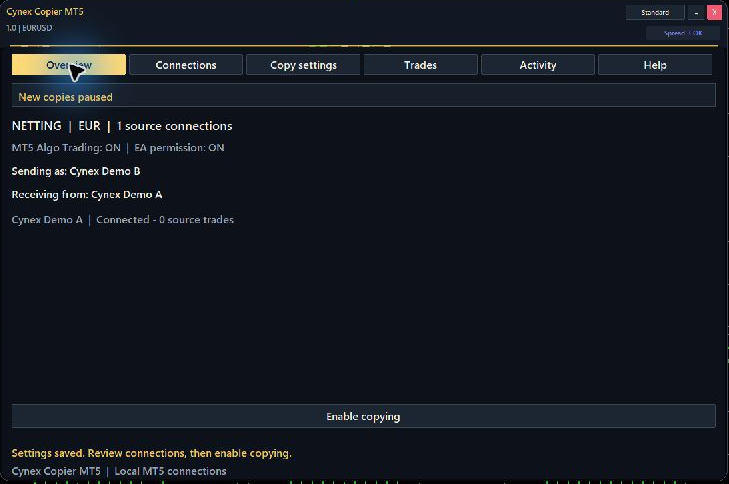 Actual MT5 dashboard · demo configuration. Full size
Your online course, PDF guide, community and free EA gift. Start below.
Welcome to the community.
Connect with Issam Algo customers and stay close to every update.
Start here.
Watch the first lesson, then follow the PDF guide on demo. Message Issam on MQL5 whenever you need personal setup assistance.
Connect your MT5 accounts.
Follow the setup, connection patterns, receiver controls and first demo test.
Your first connection, step by step.
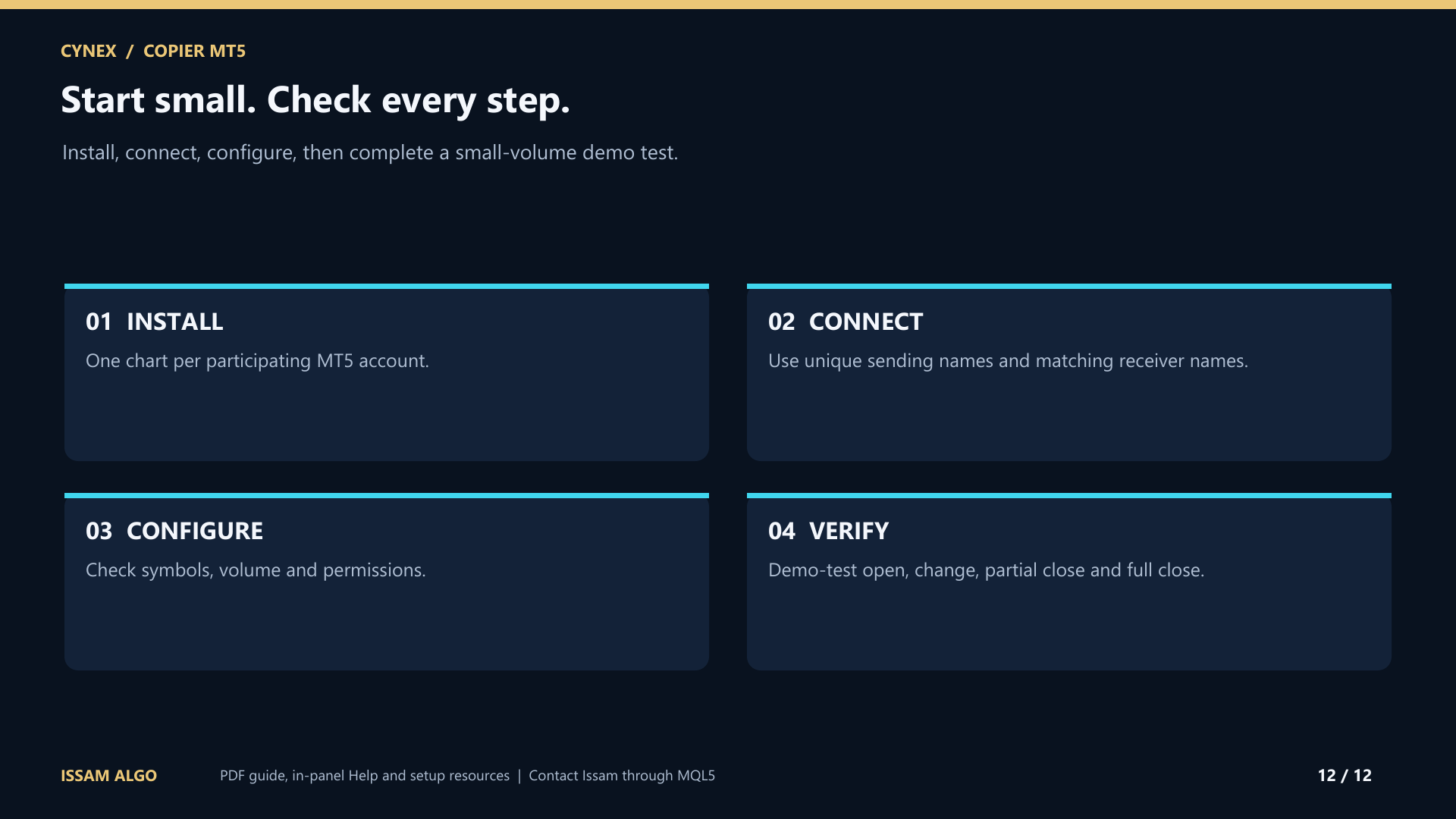
- Install on each terminal.
Use MT5 desktop under the same Windows user on one computer or Windows VPS. Attach one Cynex instance per participating account.
- Name your sources.
In Connections, turn on sending and give every source a unique name. Enter those names in the receiver’s Receive from field, separated by semicolons.
- Set the receiver rules.
Choose shared defaults or a source profile. Review lot sizing, account currencies, symbol aliases and broker contract sizes.
- Save and check the connection.
Select Save. Confirm that Overview reports the intended sources as Connected. Enable Algo Trading for terminals that will receive trades.
- Run a small demo test.
Enable copying, then check opening, stop changes, partial closing and full closing. Verify the actual receiver fills and Activity messages before using a live account.
Claim your free Smart Universal EA.
Complete these three steps to receive your Smart Universal Expert Advisor bonus.
- 1Confirm your Cynex purchase.Keep your MQL5 purchase details ready for Issam.
- 2Message Issam.Privately send your purchase details, MT5 broker name and trading account number. Never send your password.
- 3Receive your EA.Issam will arrange the separate gift licence and guide you through setup.
Your gift does not require a review. Cynex works independently; Smart Universal EA is an optional companion for your other automation workflows.
I’m here.
Message me and I’ll help you get everything running.