
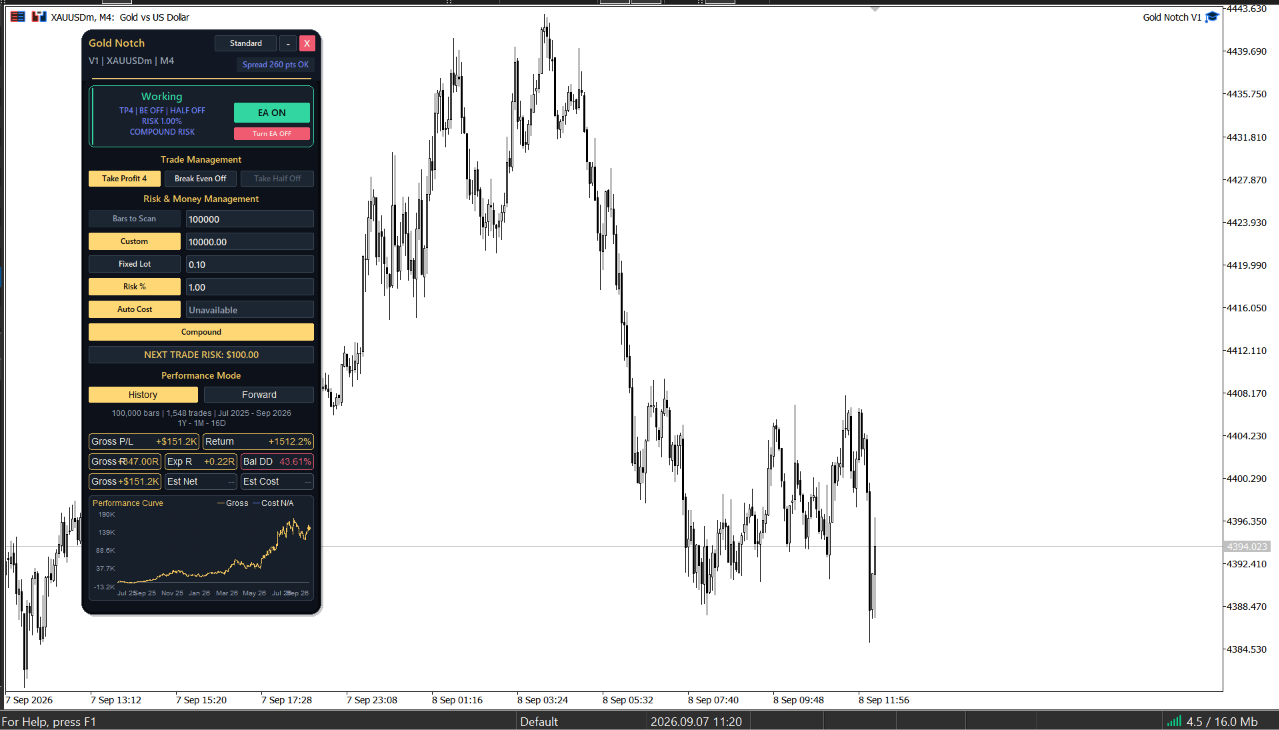
Start here
Gold Notch automates Gold trading and puts trade management, sizing and performance review on the chart. This manual explains the customer controls in version 1.00. The entry method is proprietary.
Your first setup
| Step | What to do |
|---|---|
| 1. Install | Sign in to MT5 with the MQL5 account used for purchase, then install Gold Notch from your purchased Market products. Find it in Navigator. [1] |
| 2. Open the chart | On a demo hedging account, open your broker's Gold chart. Choose M4 or M6 to match the preset filename. Start with one chart. |
| 3. Load a review file | With no existing Gold Notch positions, keep Algo Trading disabled during setup. Attach the EA. In Properties > Inputs > Load, select a file from Chart_Review. [2] |
| 4. Check the panel | Confirm the target, break-even, Take Half, balance basis, sizing, trade limits and EA OFF state. Review the nominal Next Trade Risk amount. |
| 5. Start deliberately | When the settings are ready for your demo account, enable MT5 and EA trading permissions, then use Turn EA ON. Read any status message before expecting an entry. |
A SET file changes EA inputs. It does not select the chart symbol or timeframe. Gold Notch being enabled does not mean it must open a trade immediately.
Read the control panel
The top of the panel identifies the symbol and timeframe. The status area shows whether new entries are requested. Confirm that it matches the chart and configuration you intended.
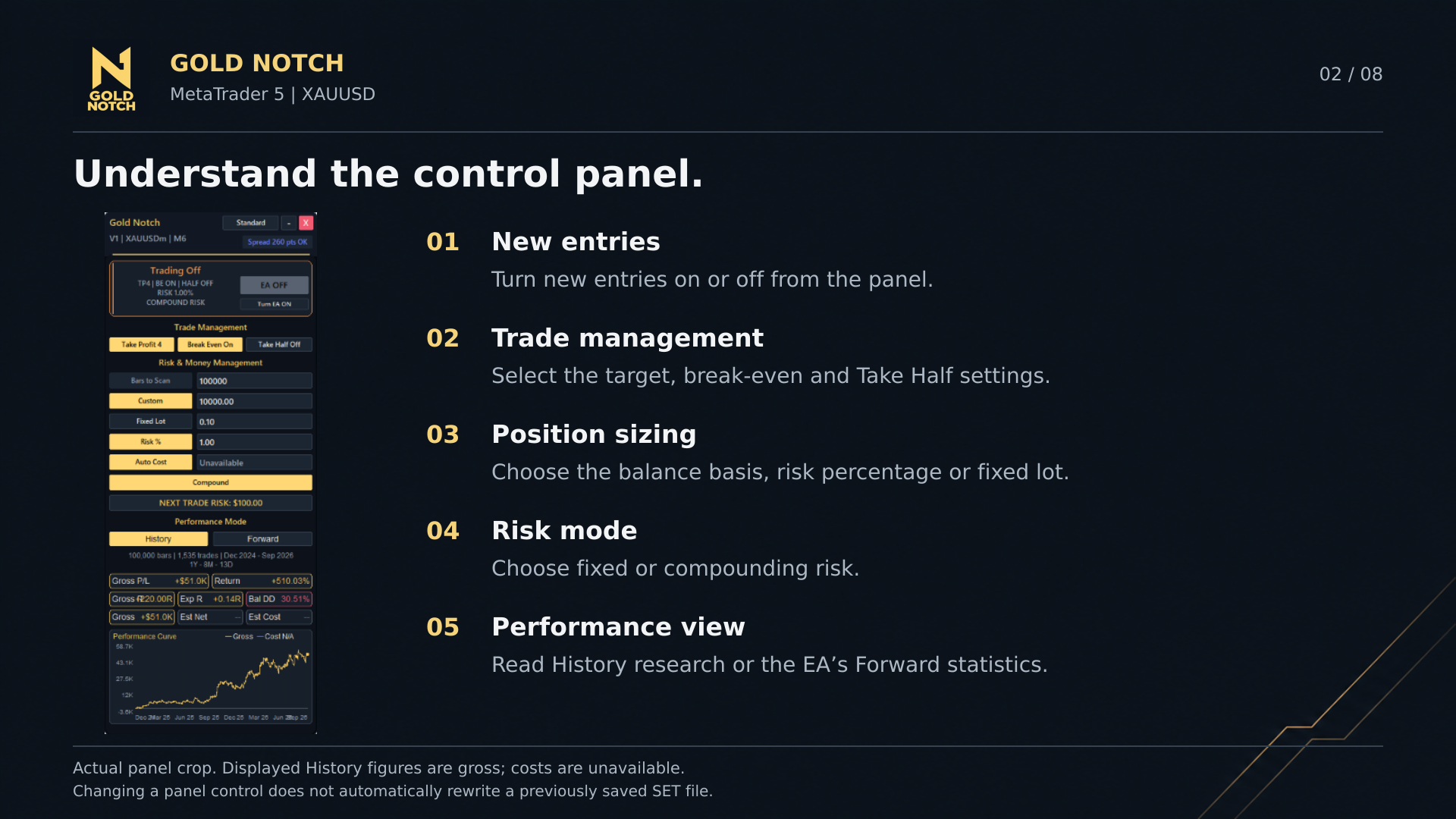
Status and EA switch: Read the active status. Turn EA ON/OFF controls new entries.
Trade Management: Select the final target, Break Even and Take Half.
Risk & Money Management: Choose the balance basis, sizing method and compounding. Check Next Trade Risk.
Performance Mode: History is modeled research. Forward follows owned trading activity.
Statistics and curve: Read the date range, sample, cost state and drawdown label with the result.
Manage each trade
Gold Notch submits a stop loss and take profit with its entry request. Target choices are expressed in R: one R is the trade's initial risk. Execution prices, volume rounding and trading costs can change the realized result.
| Control | How it works |
|---|---|
| Take Profit 1 / 2 / 3 / 4 | Choose a final target corresponding to 1R, 2R, 3R or 4R before costs and execution effects. |
| Break Even | With TP2-TP4, request a move of the stop to the entry price when TP1 is reached. A stop at entry is not a guaranteed zero net loss after costs or slippage. |
| Take Half | With Break Even enabled and TP2-TP4 selected, request a partial close of up to half the position at TP1. The volume is rounded down to the broker's lot step. |
| Broker confirmation | The EA requires confirmation of the break-even stop before the partial close. A close can be skipped if no valid partial volume is available. |
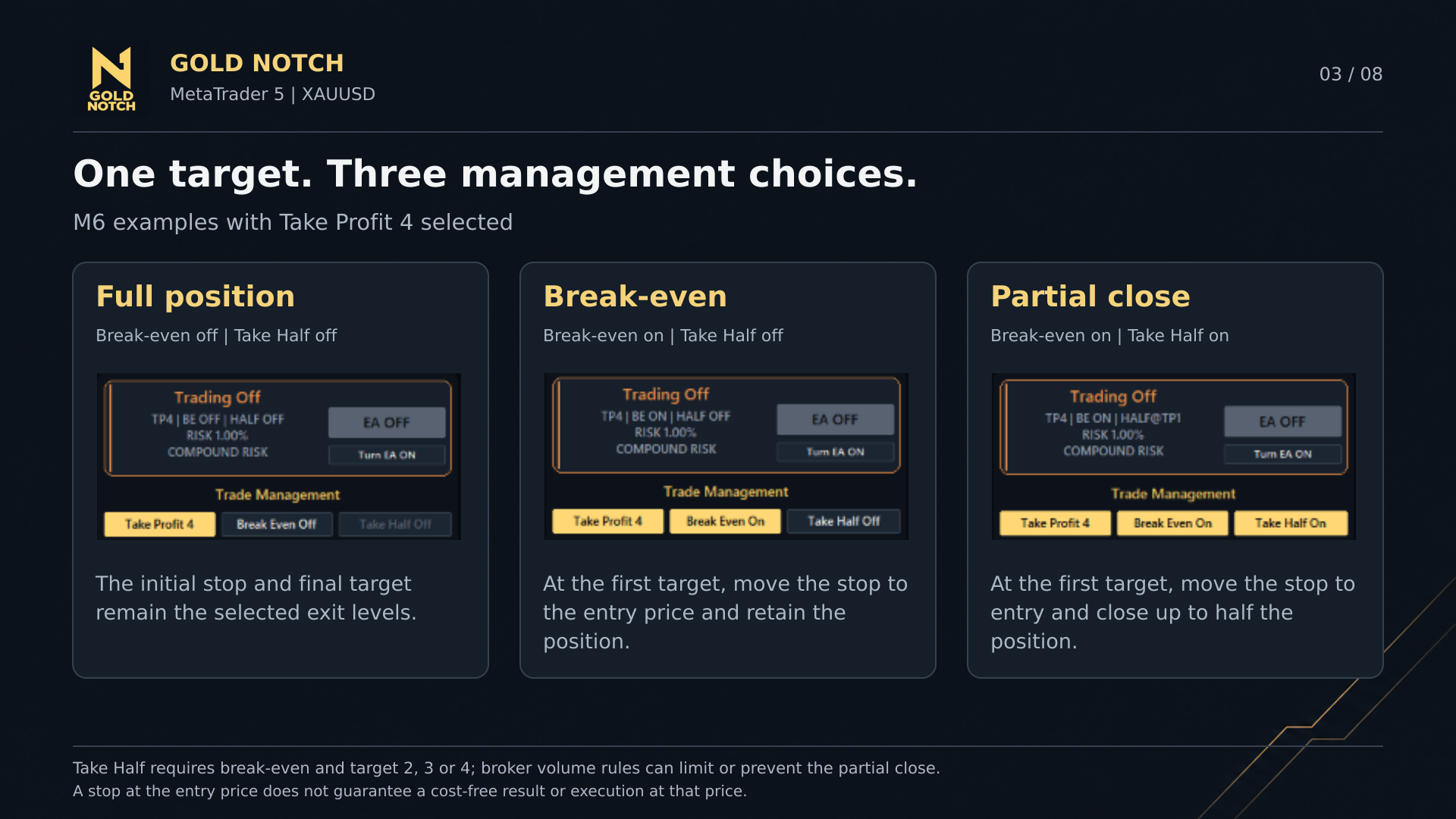
What changes when you click a control?
Verified existing positions keep the target and management policies recorded when they opened. Changing the panel sets the configuration for future entries and updates historical research; it does not rewrite every open trade's policy.
Choose the sizing basis
First choose the capital amount used for sizing. Then choose percentage risk or a fixed lot. The chart's selected History or Forward view does not turn its displayed result into a new deposit.
| Balance basis | Fixed risk | Compounding risk |
|---|---|---|
| Custom | Uses the selected custom principal. | Uses custom principal plus verified posted net results for this EA instance and symbol in its active live-budget period. |
| Account | Uses the stored account-balance baseline. | Uses the current account balance, which can also be affected by other activity on the account. |
Percentage risk
The nominal risk budget is sizing capital multiplied by Risk per Trade %. Gold Notch calculates volume from that budget and the monetary value of the initial stop, subject to broker volume and margin checks.
| Arithmetic example | Value |
|---|---|
| Custom balance | 10,000 account units |
| Risk per trade | 1.00% |
| Initial nominal risk budget | 100 account units |
| Meaning | This is a sizing example, not a recommended account size or risk level. |
If your actual balance is 1,000 units but your custom sizing balance is 10,000, a 100-unit budget is 10% of your actual balance. Custom balance is not automatically synchronized with the account.
Fixed lot
Fixed Lot mode uses the selected volume, so monetary risk varies with the stop distance and broker contract. The 0.10 lot value stored in the supplied presets is inactive while percentage sizing is selected.
Control exposure and costs
Limit overlapping exposure
| Input | Release / preset value | Meaning |
|---|---|---|
| Max Open Trades per Instance | 0 | Unlimited by this optional count limit. |
| Combined Open Risk % per Instance | 0.0 | The optional combined stop-risk admission cap is off. |
These limits screen new admissions for the EA instance; they are not an account-wide loss limit. Other EAs, manual positions and separately identified instances can add exposure. Reaching a limit does not flatten positions already open.
Review both limits before enabling trading. The screenshot assumptions of 1% per trade and no configured concurrency cap do not mean the account has only 1% total risk.
Make the cost basis explicit
| Setting | Use |
|---|---|
| Auto Commission | Uses available broker commission information. If usable data is unavailable, a net estimate may remain unavailable. |
| Manual Commission | Enter the cost for opening AND closing one lot, in account currency. Example: 3 units per side means 6 units round turn. Confirm your broker's actual schedule. |
| Include Spread in the Cost | For History research, selects recorded-bar spread estimates. Off excludes that spread estimate; it does not make actual trading spread-free. |
History does not reconstruct slippage or swap. Even a displayed estimated net History result reflects selected modeled costs, not a verified live net return. Forward uses actual fills, so spread and slippage embedded in fill P/L must not be deducted again.
Use the included presets
Each configuration has two SET files. Chart_Review starts with new entries OFF. Strategy_Tester has new entries ON. The two files otherwise contain identical inputs.
| Configuration | Target | BE | Half |
|---|---|---|---|
| M4_TP4_BEoff_Halfoff | 4R | Off | Off |
| M4_TP2_BEon_Halfoff | 2R | On | Off |
| M4_TP3_BEon_Halfoff | 3R | On | Off |
| M6_TP4_BEon_Halfoff | 4R | On | Off |
| M6_TP4_BEoff_Halfoff | 4R | Off | Off |
| M6_TP4_BEon_Halfon | 4R | On | On |
The full filename begins Gold_Notch_1_00_ and ends .set. Match its M4 or M6 label to the chart yourself. A filename describes settings, not a promised outcome.
Load, check, then run
Extract Gold_Notch_1_00_Presets.zip. Use Properties > Inputs > Load to choose the file, apply it, and check the panel. [2] All six configurations use custom balance 10,000, 1% percentage sizing, compounding, 100,000 historical bars and the release-default costs and limits.
Start by reviewing one configuration on a demo chart. None is established here as the best live default. Select your own sizing basis and exposure limits before enabling new entries.
What is and is not validated
The files match all 18 public input names and the relevant enum values in the supplied version 1.00 source. They were checked as files; MT5 import, compilation and runtime testing of this package have not been performed in this documentation workflow. Confirm the loaded panel in MT5.
Screenshot periods, broker data and execution conditions are not encoded in the files. Loading the same settings does not guarantee numerical reproduction of a selected curve.
Input reference: trading and risk
These are the defaults in the supplied 1.00 source. Loading a preset can change them, especially new-entry permission and trade management. Values are shown in customer terms; the SET key appears beneath each label.
| Input / SET key | Default | Purpose |
|---|---|---|
| Allow New Trades EnableLiveTrading | true | Requests new entries, subject to permissions and admission checks. Chart_Review sets false. |
| Take Profit Target OutcomeTargetMode | TP2 | Final target. SET values: 0=TP1, 1=TP2, 2=TP3, 3=TP4. |
| Move Stop Loss to Entry at TP1 BreakEvenEnabled | true | Optional break-even management for TP2-TP4. |
| Close up to Half at TP1 TakeHalfAtTP1 | false | Requires BE and TP2-TP4; subject to valid broker volume. |
| Balance to Use for Risk BalanceMode | Custom | Custom=0; Account=1. Chooses sizing capital. |
| Custom Balance Amount CustomStrategyBalance | 10,000 | In broker account currency units. |
| Size Trades by Risk % or Fixed Lot MoneyMode | Risk % | Risk %=0; Fixed Lot=1. |
| Risk per Trade % RiskPercent | 1.0 | Percentage of sizing capital, when Risk % is selected. |
| Fixed or Compounding Risk RiskMode | Compound | Fixed=0; Compound=1. Relevant to Risk % sizing. |
| Lot Size FixedLot | 0.10 | Volume used only in Fixed Lot mode. |
| Max Open Trades per Instance MaxConcurrentTrades | 0 | Zero means unlimited by this count limit. |
| Combined Open Risk % per Instance MaxAggregateOpenRiskPercent | 0.0 | Zero turns this optional admission cap off. |
Input reference: costs and display
| Input / SET key | Default | Purpose |
|---|---|---|
| Commission Mode CostMode | Auto | Auto=0; Manual=1. |
| Commission for 1 Lot, Open + Close ManualCommissionPerLot | 0.0 | Round-turn commission in account units; used in Manual mode. |
| Include Spread in the Cost IncludeSpreadInCost | false | Controls spread inclusion in the historical cost estimate. |
| Show Control Panel EnablePanel | true | Displays the on-chart interface. Hiding it does not turn trading off. |
| Bars Used for Historical Statistics CountBars | 100,000 | Requested historical scan size. Actual available bars can be fewer. |
| EA Trade ID (Magic Number) MagicNumber | 26090102 | Identifies the EA's trades. Keep it unchanged while it owns positions. |
Inputs and panel selections are separate
Panel clicks can change active settings. The terminal's Inputs dialog may still contain earlier values. Before saving your own SET file, explicitly enter the values you want in Inputs; do not assume Save captures all recent panel clicks.
Applying changed Inputs reinitializes Gold Notch from those values. A qualifying timeframe change can preserve the panel's current selections. Changing M4 to M6 alone does not load an M6 preset.
Change configurations while flat when practical. If you need only to pause new entries, use the Gold Notch panel switch rather than resetting the product or deleting its saved state.
Understand History results
History is an OHLC research simulation on chart bars. It is not a real-tick Strategy Tester report or a live account record. Current broker volume, margin and valuation assumptions also affect the calculation.
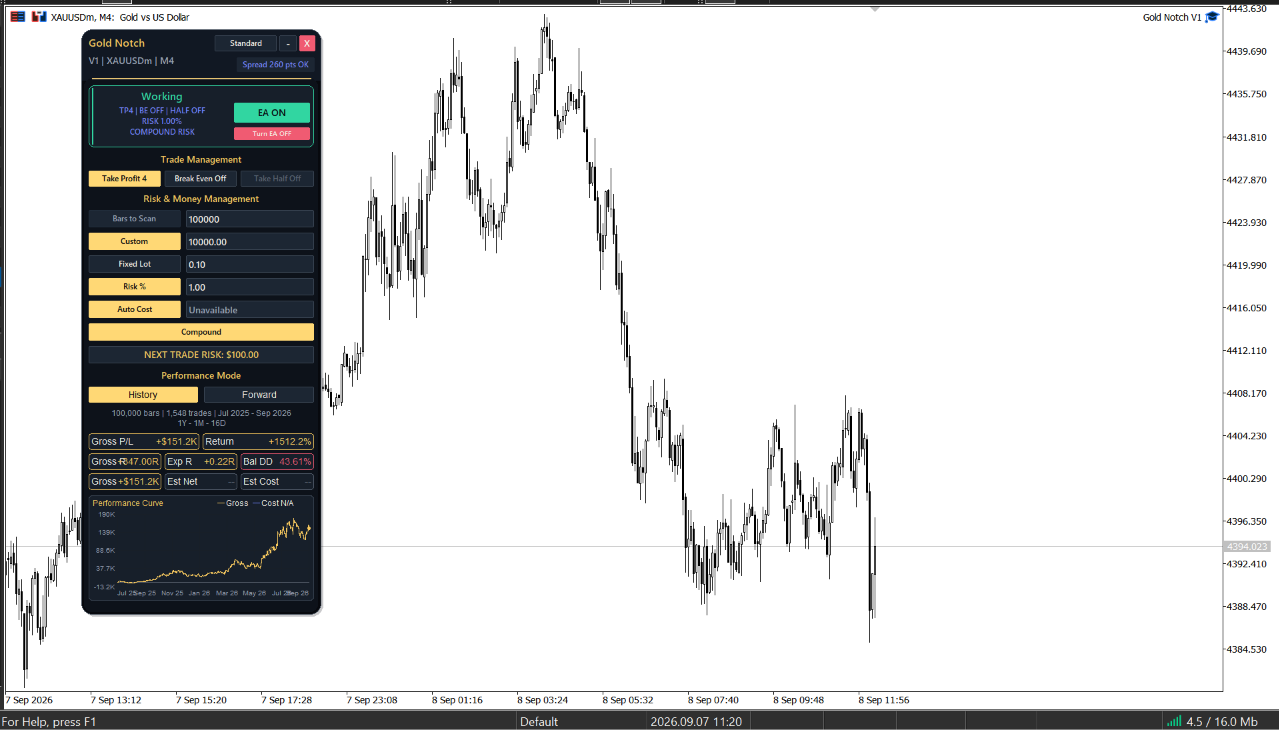
| Metric | Meaning in the supplied captures |
|---|---|
| Gross R / Exp R | Total result in initial-risk units, and average R per simulated trade. Cost data was unavailable, so these are gross values. |
| Gross P/L / Return | Money result and cumulative percentage under the selected sizing assumptions. The percentage is not an annualized return. |
| Bal DD | Drawdown of settled cash balance. It excludes open floating losses and is not equity drawdown. |
| Est Net / Est Cost | Dashes indicate unavailable estimates, not a zero cost or verified net result. |
The illustrated M4 example shows +0.22R gross expectancy and 43.61% balance drawdown using custom balance 10,000, 1% risk and compounding. It is one owner-selected example, not an independent evaluation.
Understand Forward results
In a running trading terminal, Forward reports the EA instance's owned activity for the symbol and displayed period, across its originating chart timeframes. It is not a summary of every trade on the account.
| Item | How to read it |
|---|---|
| Posted cash flows | Uses verified broker-posted results and charges attributable to the instance. Unrelated account activity should not be presented as Gold Notch results. |
| Open positions | Remaining open-position P/L and accrued swap contribute to the current live endpoint. |
| R and Exp R* | R uses verified original fill risk. Exp R* includes open lifecycles and is provisional while positions remain open. |
| Eq DD* | Observed equity drawdown. Earlier floating excursions and missed samples are not reconstructed. It is not a complete tick-by-tick drawdown history. |
| Curve | Shows settled cash flows plus the current live endpoint, rather than stored equity at every historical tick. |
| Gross, Cost and Net | Complete reconciliation needs known cost information. Actual fill P/L already incorporates the effect of spread and slippage. |
History and Forward answer different questions
Use History to inspect a configuration under the panel's research assumptions. Use Forward to monitor attributable trading activity. Changing the view does not place a trade, erase broker history or recreate missing observations.
If values are unavailable
Allow broker history and ownership reconciliation to complete. Read the panel message and the Experts/Journal entries. Keep unavailable values unavailable when recording or sharing results.
Run an execution test
The supplied captures document History research. Use MT5 Strategy Tester separately to examine order execution with a documented data and cost model. Passing a test does not predict live returns.
| Step | Action |
|---|---|
| 1. Match the product | Select the actual Gold Notch 1.00 release you intend to run. |
| 2. Load the tester preset | In tester Inputs, load the matching Strategy_Tester file. Confirm Allow New Trades is true. |
| 3. Set the environment | Select the broker's Gold symbol, matching M4/M6 period, date interval, deposit, currency, leverage and hedging accounting model. [3] |
| 4. Set data and costs | Use available real ticks for execution checks, with broker-appropriate commission, spread and other relevant test settings. Record what was used. [3] |
| 5. Inspect behavior | Review the report and Journal. In visual testing, inspect entries, SL/TP, break-even and partial closes where applicable. |
| 6. Save evidence | Save the tester report, input file and conditions. Review costs, net results and equity drawdown before describing the run as a net performance example. |
Record alongside every report
Product build; full preset filename; broker/server and symbol; timeframe; dates; tick model and data availability; deposit/currency/leverage; account mode; sizing; costs; simulated trade count; total R and expectancy basis when available; net P/L; drawdown definition.
The panel's CountBars input controls its research scan. It does not configure Strategy Tester dates. Different data, spreads, fill assumptions and costs can produce a different curve from the panel.
Operate and maintain Gold Notch
Before a session
Confirm the intended account, symbol and timeframe. Check connectivity, trading permissions, the selected configuration, the capital basis and nominal risk. Review owned positions and whether any status message is blocking new entries.
Pause new entries
Use Turn EA OFF on the Gold Notch panel. Existing positions remain open and retain their entry-time management policies. Keep the EA running and trading permissions available if it needs to adjust stops or partially close those positions.
Keep management available
The terminal or a suitable VPS must remain running and connected for EA-driven actions. Broker-held SL/TP orders remain with the broker when the terminal is offline, but the EA cannot send a new break-even or partial-close request during that downtime.
Do not run duplicate copies of the same setup unintentionally on a local computer and VPS. After a migration, check the target environment and its Journal before relying on it.
Restart or change settings
Check recovered position ownership and the panel state after restarting. Existing verified positions keep their recorded policies. Do not change the EA Trade ID, erase saved state or switch the account as a shortcut around a recovery message.
For a deliberate new configuration or update, pause entries and, where practical, wait until the EA's trades and orders have settled. Save the intended Inputs and version record. After the change, verify the panel and test the new version on demo.
Troubleshoot the visible problem
| What you see | What to check |
|---|---|
| EA OFF / Trading Off | The new-entry request is off. This is expected after loading Chart_Review. Turn entries on only after checking setup. |
| Working, but no entry | Enabled does not mean an immediate trade is due. Check trading hours, permissions, connectivity, account mode, exposure limits and the exact status/Journal message. |
| Hedging account required | Verify that the broker account uses MT5 hedging accounting. A netting account cannot accept new Gold Notch trades in version 1.00. |
| Automated trading not allowed | Check the platform permission, this EA's permission and the account's ability to trade. [2] |
| Maximum trades / combined risk reached | Inspect current owned exposure and configured limits. Do not increase limits merely to force another trade. |
| Volume, margin or stop rejection | Check the broker's Gold contract, available margin, lot minimum/step and stop restrictions. Preserve the rejection text for support. |
| Take Half unavailable | Select TP2-TP4 and enable BE. For an open trade, its recorded policy, broker-confirmed BE and valid partial volume must permit the action. |
| Auto Cost Unavailable / net dashes | Check commission data or enter a verified round-turn commission in Manual mode. Unknown costs are not zero. |
| Recovery, ownership or capital message | Keep the trade identity and saved state intact. Check connection/history and provide the exact message to support if it persists. |
| Preset appears different | Verify folder, timeframe and Inputs. Panel changes are not automatically captured in saved Inputs; reload and inspect the panel. |
| History changes / fewer bars | Check actual available bars, period, settings, symbol specifications and costs. A requested 100,000 bars may exceed available history. |
Use the terminal's Experts and Journal tabs to preserve the time and exact message. Do not treat an unexplained status as a request to increase risk or reset the product.
Support and version notes
Contact Issam Kassas on MQL5
Use the Gold Notch product comments or the seller's MQL5 profile. Send a concise account of what you expected, what happened, and when it happened.
| Include | Keep private |
|---|---|
| Gold Notch version and preset filename; broker/server, account mode, symbol and timeframe; relevant Inputs; panel screenshot; exact Experts/Journal message and time. | Passwords, investor passwords, login credentials and unrelated account details. |
| For a test question: the exported report and test conditions. For a trade-management question: relevant order/deal information with unnecessary identifiers removed. | Do not post account access credentials in public comments. |
Version and evidence
This manual describes the owner-supplied Gold Notch source with property version 1.00 and the accompanying screenshots and preset package. Prepared 8 September 2026. Screenshots preserve the original panel values and proportions.
Code inspection establishes documented behavior, not successful compilation or live execution. Preset files were statically checked; terminal import and runtime validation remain separate. Selected historical examples are not guarantees of future performance.
Official platform references
[2] EA permissions and input presets
Platform references checked 8 September 2026. Product behavior is documented from the supplied 1.00 source. If a later version changes a control, use that version's documentation.