
CTRADER / WINDOWS DESKTOP
Unix Scalper
Nine timeframe cards, clear candle states and native entry arrows with an optional ATR-buffer stop-loss reference.
Future product updates included
cTrader edition · v1.2 · licensed to your purchasing cTrader ID.
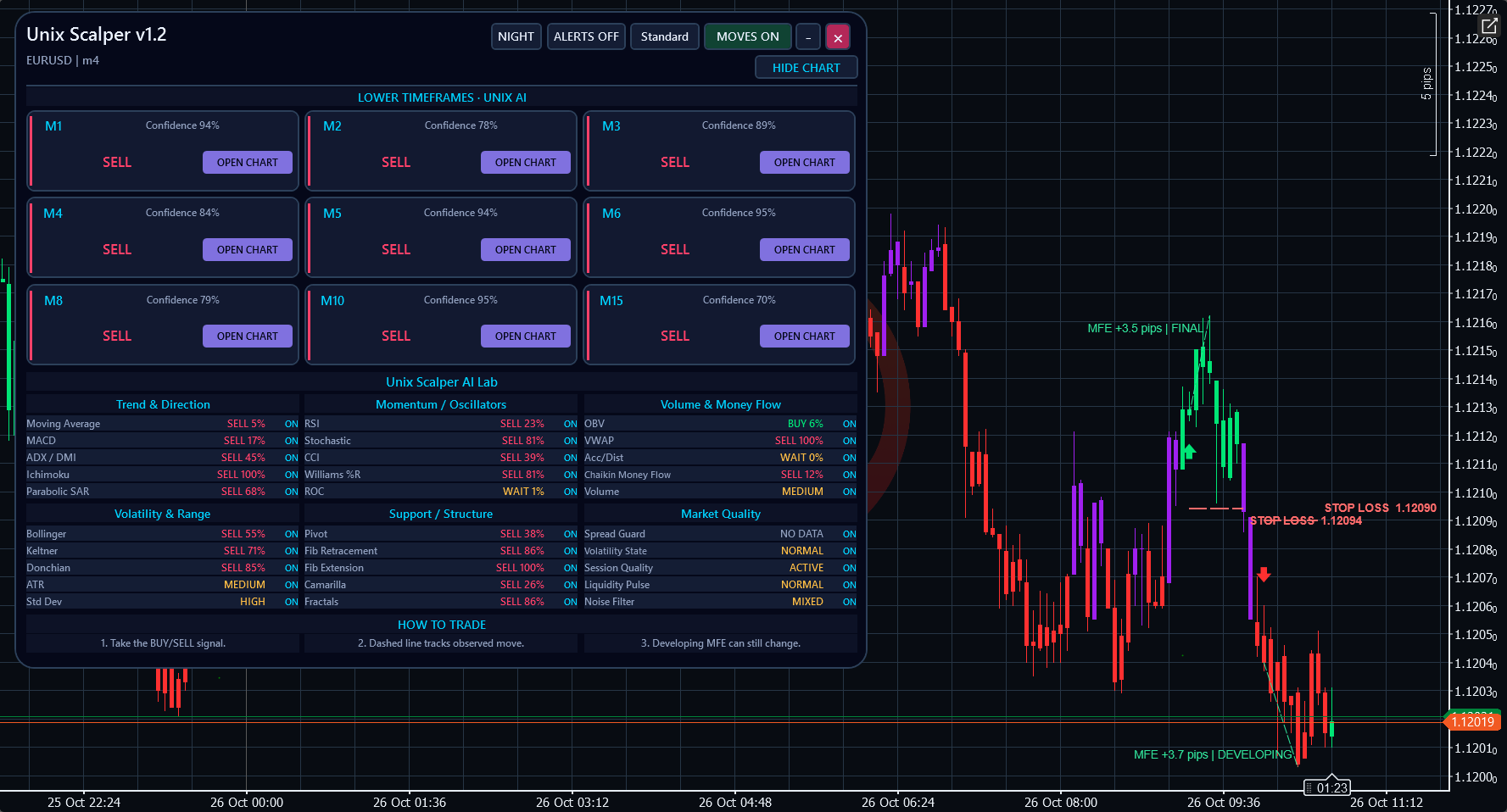
ON YOUR CHART
See the tools in context.
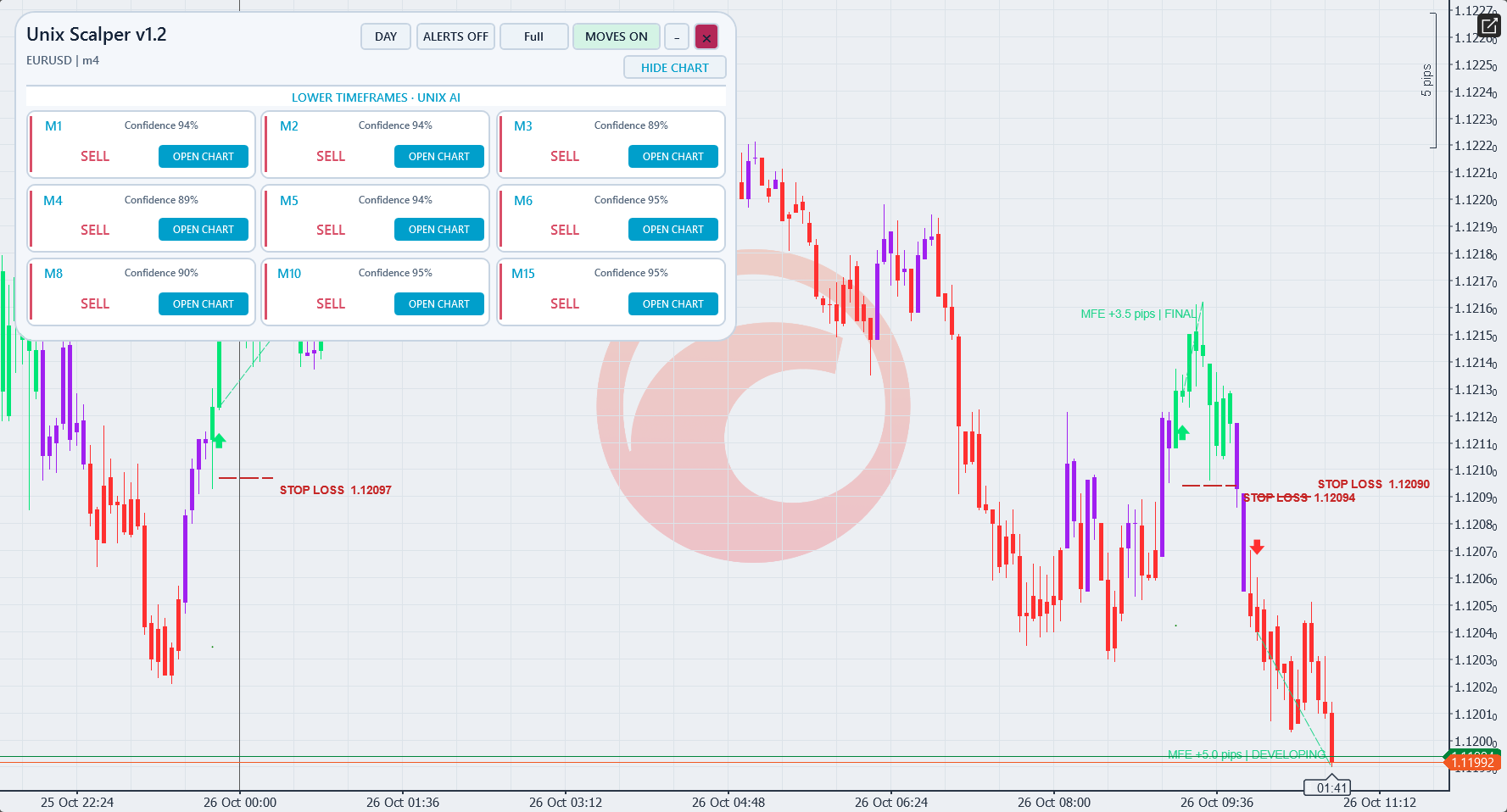
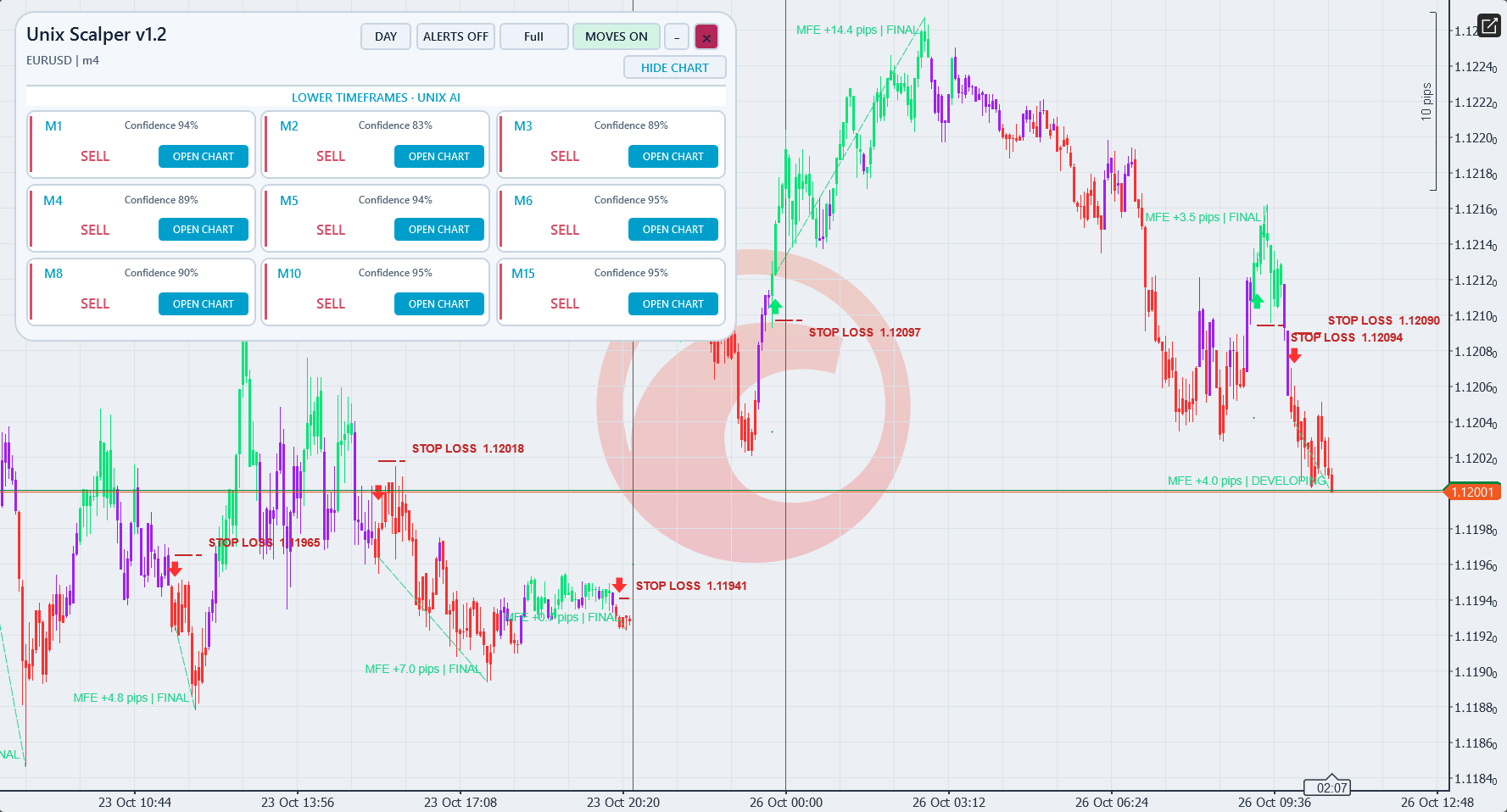
Authentic cTrader screenshots. Some show earlier builds; current controls may differ. Selected historical examples illustrate features, not audited returns or expected performance.
WHAT YOU CAN DO
Build your analysis.
Nine chart-symbol timeframe cards: M1, M2, M3, M4, M5, M6, M8, M10 and M15.
Thirty local rule-based technical assessments in the AI Lab.
Bright green, red and purple candle states; native BUY below the entry low and SELL above the entry high.
Optional red dashed STOP LOSS line and price, enabled by default with ATR period 14 and buffer 1.0.
Standard, Compact and Full views, Day/Night styling, movable and collapsible panel.
Optional popup/email alerts identify a new BUY or SELL and its entry price.
GET STARTED
From the Store to your chart.
Install your indicator
- Obtain the named indicator from its official cTrader Store product page using your cTrader ID.
- Install/synchronise it in the desktop cTrader app using the Store instructions, then open a demo chart.
- Add the indicator from the chart Indicators menu, review native parameters and allow enough history to load.
Before you start
- cTrader Windows desktop; broker-supported time-based chart with sufficient history.
- Use the cTrader ID that owns the Store purchase.
- Email alerts require working cTrader email settings and valid sender/recipient parameters.
YOUR FIRST SESSION
Learn the workflow.
- 01
Start on a demo EURUSD M1 or M4 chart and allow sufficient history to load.
- 02
Review the nine cards and their data states; use OPEN CHART to select a native timeframe.
- 03
Use Standard or Compact to inspect the thirty evidence rows and disagreements.
- 04
Review entry arrows and the STOP LOSS price; change ATR period or buffer in the native indicator parameters if needed.
- 05
Use MOVES to control entry arrows, observed moves and stop references together; configure alerts only after reviewing the chart.
Understand the limits.
- The stop reference does not place a broker stop order or cap account loss.
- ATR uses the arithmetic mean of completed pre-entry true ranges; the reference follows the entry wick while that candle forms and fixes when it closes.
- Cards show current available data even while older candles are visible.
- DEVELOPING/FINAL annotations measure favourable chart excursions, not executed trades, take-profit instructions or net returns.
Analysis indicators do not guarantee results. Trading involves risk; test configurations on a demo account first.
Questions, answered.
Does the STOP LOSS line submit an order?
No. It is a manual planning reference: buy entry low minus ATR × buffer; sell entry high plus ATR × buffer.
What does the confidence reading mean?
Agreement among local technical rules, not a probability of profit.
Why do arrows and stops disappear together?
The MOVES control governs entry arrows, move annotations and stop references together.
Which account receives the licence?
The cTrader ID signed in to cTrader Store when purchasing. Use that same cTID in the desktop app; the purchase cannot be started by a different cTID.
Does this run in cTrader Web or Mobile?
Custom indicators run in desktop cTrader. These product examples and checks are from Windows; independent Mac validation is not available. Web and Mobile support built-in indicators only.
YOUR NEXT STEP
Unix Scalper
One cTrader indicator. One payment of $29. Future versions included.
Purchase and installation are handled by cTrader Store using your cTrader ID.
Need a hand?
Use the setup steps above and the official cTrader guides, or contact Issam Algo for product help.