
CTRADER / WINDOWS DESKTOP
Atomic Analyst
Trend-filtered signals, transparent analytical trade plans and multi-timeframe context in an interactive chart panel.
Future product updates included
cTrader edition · v1.1 · licensed to your purchasing cTrader ID.
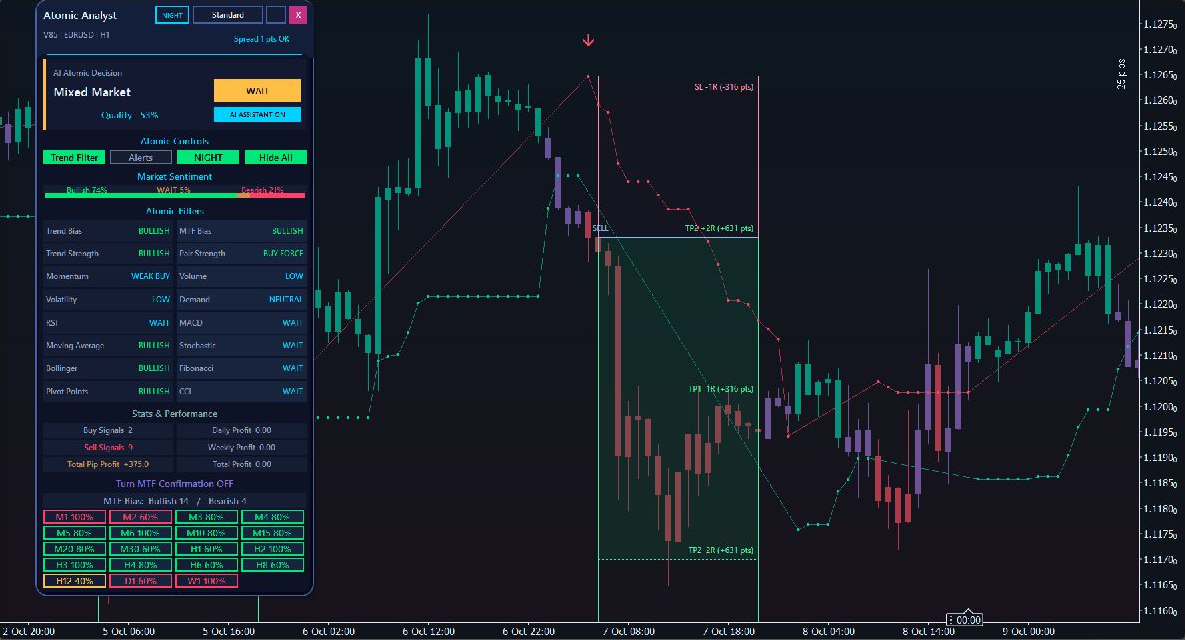
ON YOUR CHART
See the tools in context.
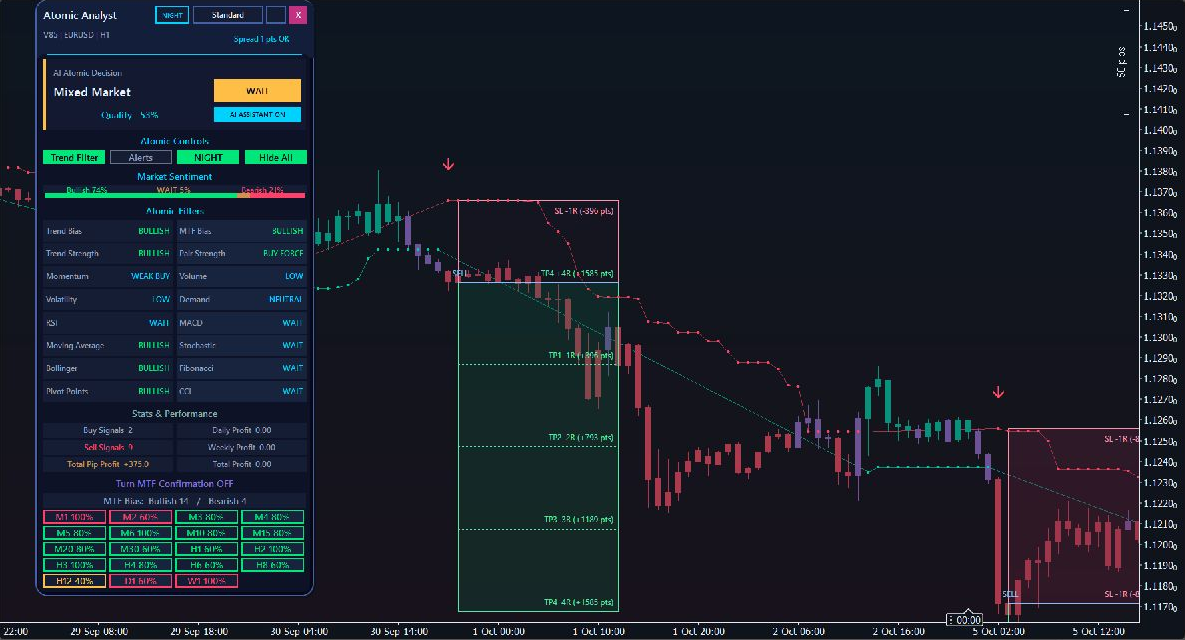
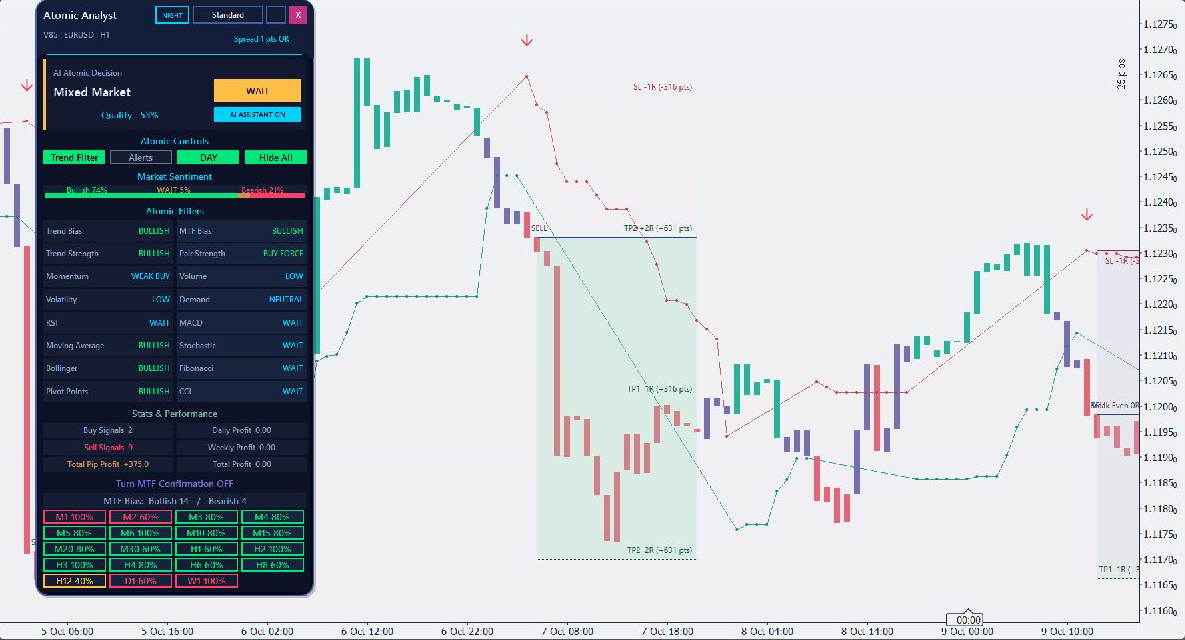
Authentic cTrader screenshots. Some show earlier builds; current controls may differ. Selected historical examples illustrate features, not audited returns or expected performance.
WHAT YOU CAN DO
Build your analysis.
Trend Filter buy/sell analysis with bias, strength, momentum, volatility and technical filters.
Multi-timeframe context across supported chart periods.
Entry, stop and reward reference levels with transparent trade-glass boxes.
Movable/collapsible panel, display sizes and Day/Night/custom themes.
Desktop popup, sound and configurable email notifications.
GET STARTED
From the Store to your chart.
Install your indicator
- Obtain the named indicator from its official cTrader Store product page using your cTrader ID.
- Install/synchronise it in the desktop cTrader app using the Store instructions, then open a demo chart.
- Add the indicator from the chart Indicators menu, review native parameters and allow enough history to load.
Before you start
- cTrader Windows desktop; broker-supported time-based chart with sufficient history.
- Use the cTrader ID that owns the Store purchase.
- Email alerts require working cTrader email settings and valid sender/recipient parameters.
YOUR FIRST SESSION
Learn the workflow.
- 01
Attach to a time-based demo EURUSD H1 chart and wait for history.
- 02
Select Trend Filter and review bias, strength and supporting filters.
- 03
Inspect the indicated entry, stop and reward levels with the wider chart.
- 04
Compare multi-timeframe context; adjust panel display and alert controls as needed.
Understand the limits.
- No automatic trade execution.
- AI Assistant and quality are technical-rule agreement, not probability of profit.
- Trade-glass outcomes are analytical illustrations, not broker execution backtests.
- Gallery examples deliberately select winning setups; losing and break-even signals also occur.
- The panel shows the current assessment while the chart can show historical signals.
Analysis indicators do not guarantee results. Trading involves risk; test configurations on a demo account first.
Questions, answered.
Are the trade-glass results account returns?
No. They illustrate how historical analytical setups developed; they are not executed trades.
Are the three gallery images three different trades?
No. Two selected sell setups are shown; the Day view repeats the first example to compare presentation.
How do I configure email?
Use working cTrader email settings and valid indicator sender/recipient addresses; delivery depends on that configuration.
Which account receives the licence?
The cTrader ID signed in to cTrader Store when purchasing. Use that same cTID in the desktop app; the purchase cannot be started by a different cTID.
Does this run in cTrader Web or Mobile?
Custom indicators run in desktop cTrader. These product examples and checks are from Windows; independent Mac validation is not available. Web and Mobile support built-in indicators only.
YOUR NEXT STEP
Atomic Analyst
One cTrader indicator. One payment of $39. Future versions included.
Purchase and installation are handled by cTrader Store using your cTrader ID.
Need a hand?
Use the setup steps above and the official cTrader guides, or contact Issam Algo for product help.